
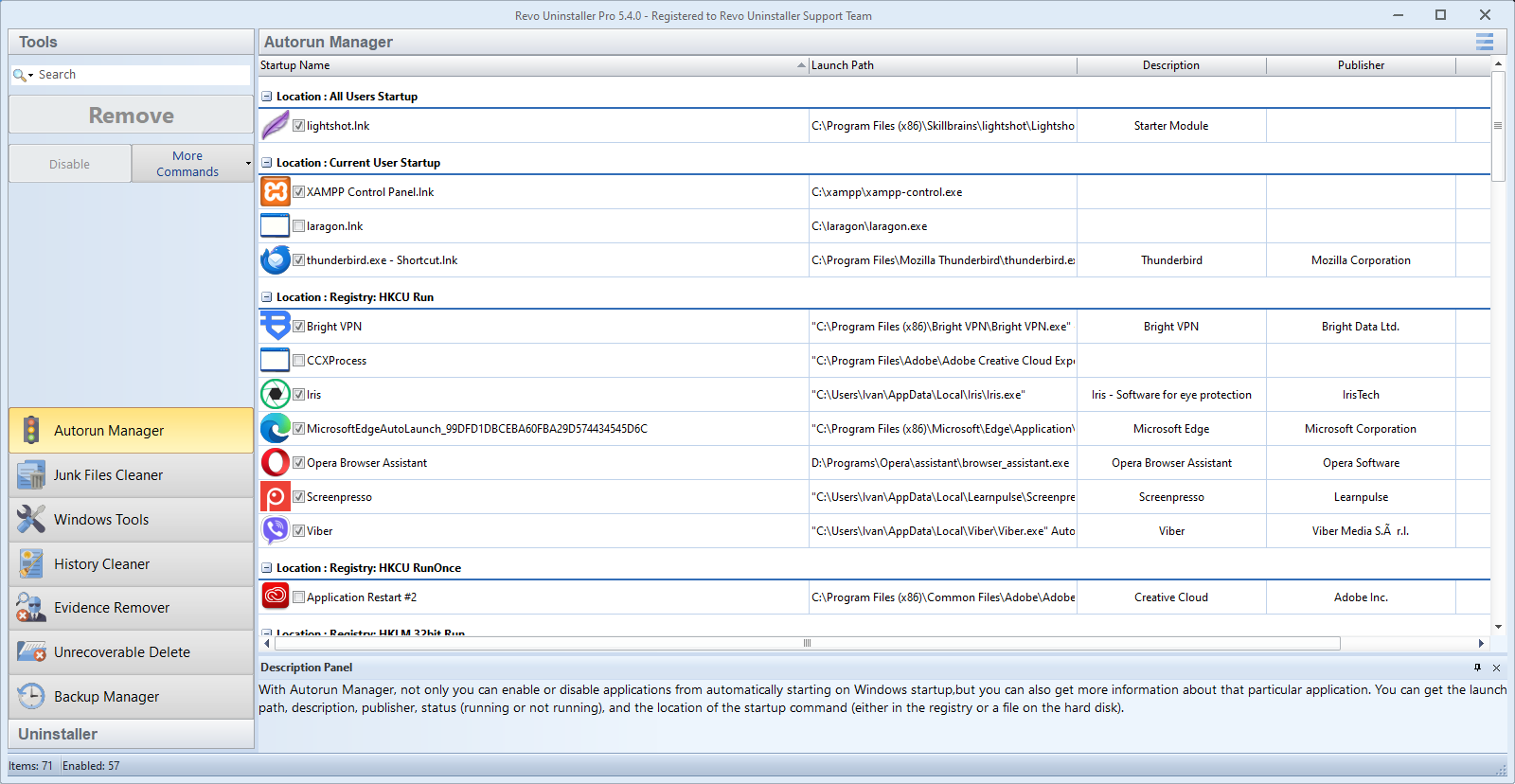
Removing many programs in sequence is efficient, but leftovers and caches do not always disappear in one pass. After your uninstalls, run a junk scan focused on temp folders and installer caches, then review the list instead of selecting all.
Check Downloads for orphaned setup files. Move installers you still need to a dedicated archive drive. Empty the Recycle Bin only after you are sure nothing important landed there during the session.
Windows Storage Sense can complement manual cleanup. Use it for automatic temp trimming, while you keep Revo for program-specific folders the OS summary does not mention.
If free space barely moves, run a disk health check. Failing SSDs sometimes misreport free clusters; hardware problems masquerade as “mystery” full disks.
Where the gigabytes actually hide
Browser profiles, game launchers, and creative suites cache previews beside the main install path. After uninstalling the parent app, revisit Revo’s leftover list for folders under %LOCALAPPDATA% and %APPDATA% that still carry the vendor name.
If you use Windows Subsystem for Linux or containers, remember those virtual disks grow quietly. Shrinking them is a separate workflow from desktop uninstalls—do not delete ext4.vhdx blindly from Explorer.
What not to “fix” for space
Avoid aggressive manual pruning of WinSxS component store folders; use Microsoft’s built-in servicing tools if servicing reports corruption. Randomly deleting DLLs from shared runtimes to win a few megabytes often breaks unrelated programs.
Page file and hibernation files can look huge in tree-size tools. Changing them is a power-user tradeoff for RAM and resume behavior, not a substitute for uninstalling duplicate suites.
A sane end-of-session ritual
After a binge, reboot once, then open Settings → System → Storage to confirm the OS sees the reclaimed space. If numbers still look wrong, run chkdsk or your drive vendor’s health tool before you spend another hour deleting cache folders.
Cloud placeholders and “online-only” files
OneDrive, Dropbox, and similar clients can show small on-disk footprints while still reserving metadata. If your goal is real free space for a large local project, open the cloud app’s settings and verify which folders are pinned offline versus online-only before you blame uninstall leftovers.
Logs, dumps, and developer cruft
IDEs, Android emulators, and Docker Desktop leave multi-gigabyte logs and VM images outside typical “Programs” paths. After removing those products, search Revo’s junk categories for *.log and old crash dumps under %LOCALAPPDATA%\CrashDumps only when you no longer need them for support tickets.