Features

Screenshots and videos from the Windows app: All Programs, tools, App Manager, and more.

Use this page as a visual map. Each block matches a real panel inside the program so you know what to expect before you click around on your own PC.

What you will find in the sidebar

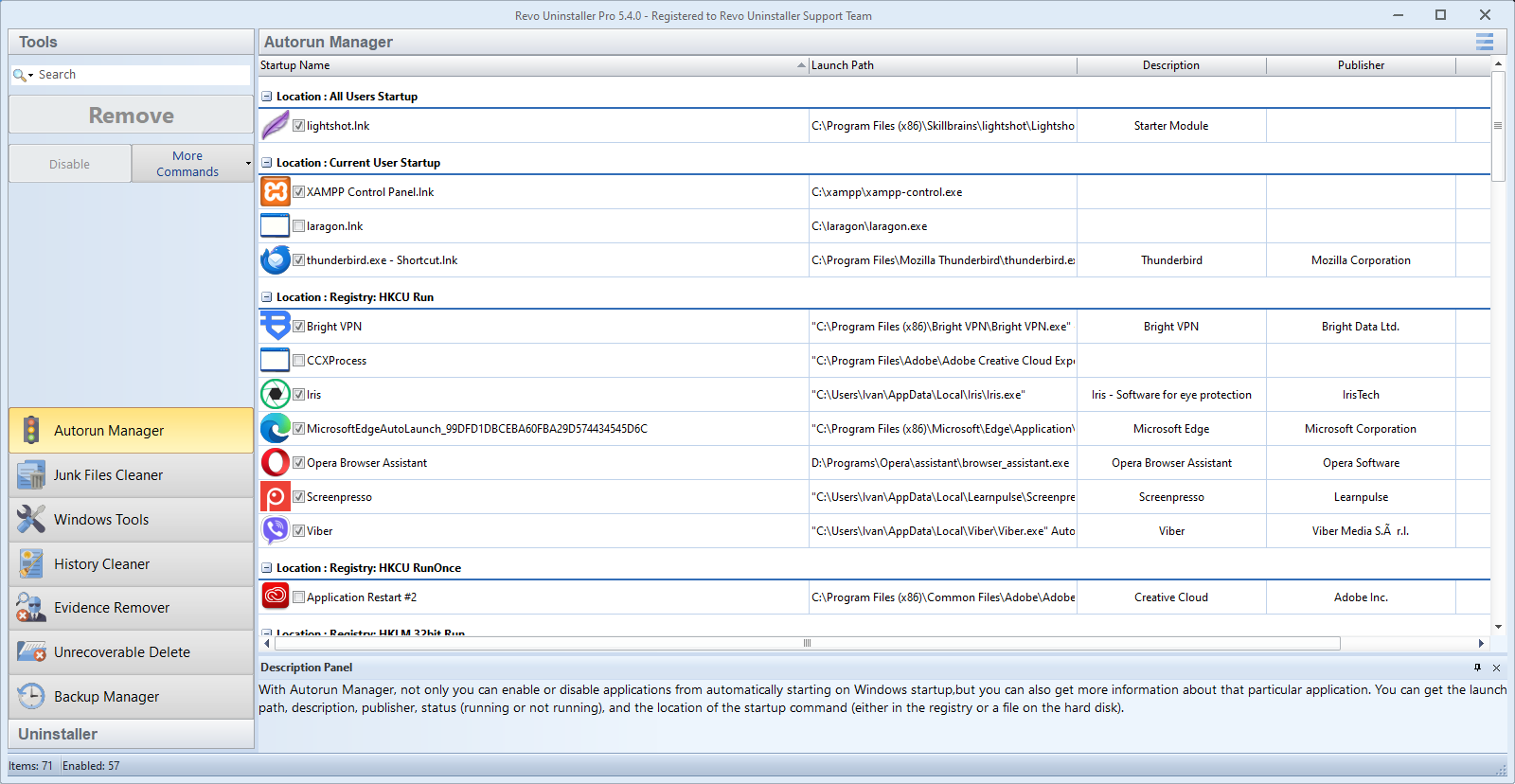
Beyond uninstalling, the app groups maintenance utilities in one window. Availability can vary by edition and version.

Junk Files

Scan user and system temp locations, browser caches, and broken shortcuts. Review the list before deletion.

Logs Manager

Open uninstall and operation logs when you need to remember what changed after a long session.

Backup Manager

Relates to registry and system backups created through the tool. Keep copies until you are sure the PC is stable.

Evidence Remover

Privacy-oriented cleanup of recent lists and similar traces. Use only when you understand what will be cleared.

Unrecoverable delete

Secure deletion options for sensitive files. Slower than normal delete and not needed for everyday uninstalls.

Multi-level backup

Pro-oriented options around tracking installs and restoring snapshots. Read prompts carefully before enabling.

Step-by-step context lives on the Guides page. Licensing questions are summarized in the FAQ.

Screenshots

Real interface views from the program.

Thumbnails may look sharper or softer than your display depending on scaling. If text looks fuzzy, compare at 100% scaling or export a fresh capture from your own machine for documentation.

Modules you may see beyond this page

Editions differ. If your sidebar lists items we did not capture, treat them like the pictured modules: preview, then act.

  • Registry Cleaner finds invalid references. Export a backup first and remove only entries you understand. See Registry Cleaner screenshots below.
  • Office cleaners target add-ins and caches for productivity suites. Close Office before you run them.
  • Uninstall wizard options let you tune scan depth. Start conservative on unfamiliar PCs.
  • Network-related leftovers sometimes appear after VPN clients. Verify adapters in Settings before deleting drivers.
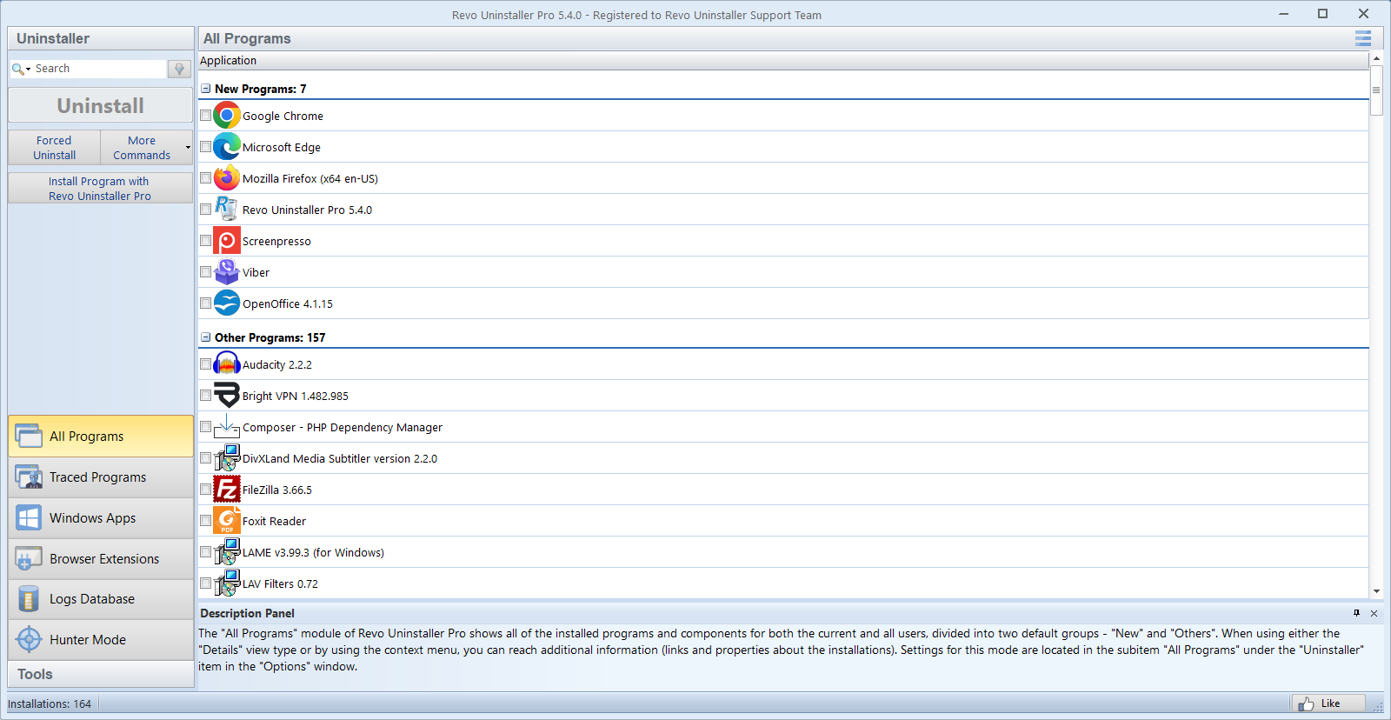
Screenshot: Revo Uninstaller All Programs list with program icons and groups

All Programs

Browse everything installed for your user (and others, depending on settings). Uninstall, Quick Uninstall, Forced Uninstall, and Hunter Mode are available from the left panel.

Use column headers or context menus to sort by size or install date when you are hunting for old trial software or duplicate runtimes.
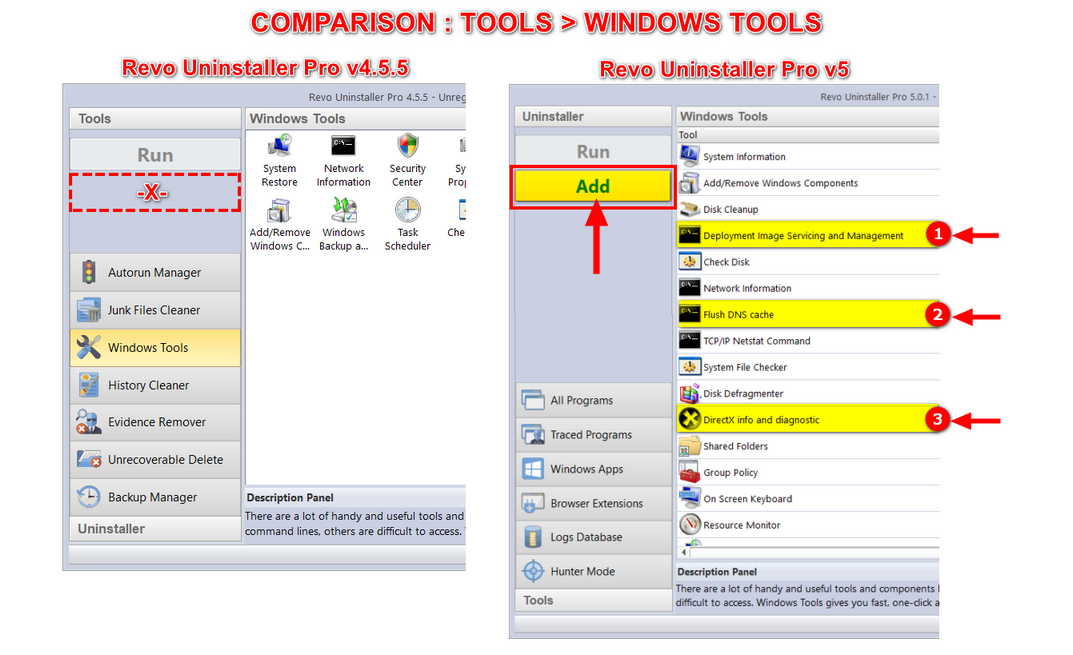
Screenshot: Windows Tools section in Revo Uninstaller

Windows tools

Open System Restore, Services, Network Connections, and other built-in utilities from one place instead of searching the Control Panel.

Handy when an uninstall leaves a service running: jump to Services, stop it, then return to Revo for another pass.

Screenshot: Revo App Manager listing applications and components

App Manager

Review apps, services, and related components before you remove software, helpful when an installer added background agents you did not notice.

Expand entries to see dependencies. If you are unsure whether a component is shared, search the web for the DLL or service name before you remove it.

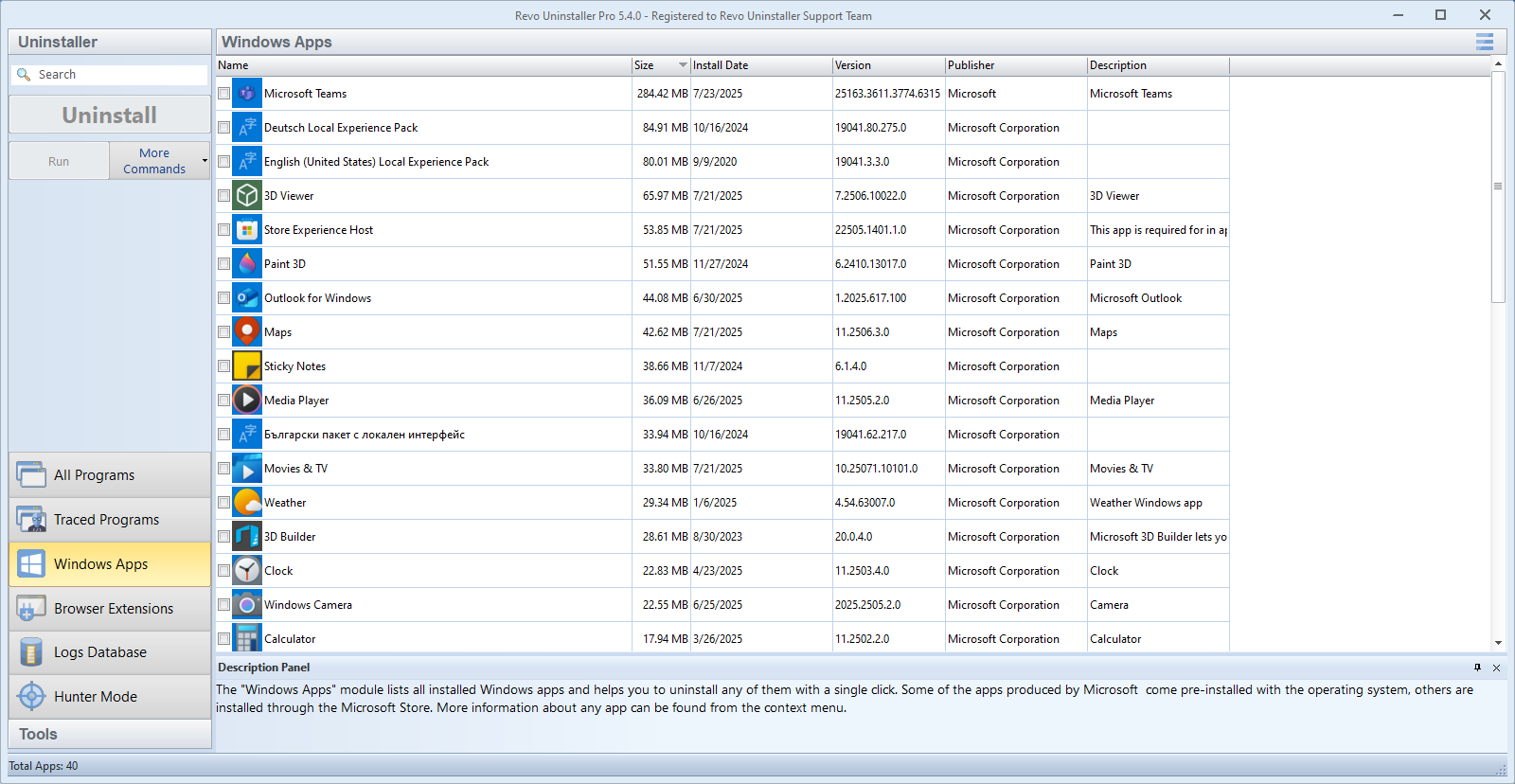
Screenshot: Windows Apps module listing Microsoft Store apps

Windows Apps

List and uninstall Store-style apps alongside desktop programs.

Some system components are protected by Windows. If an entry refuses removal, use Settings → Apps as a fallback.

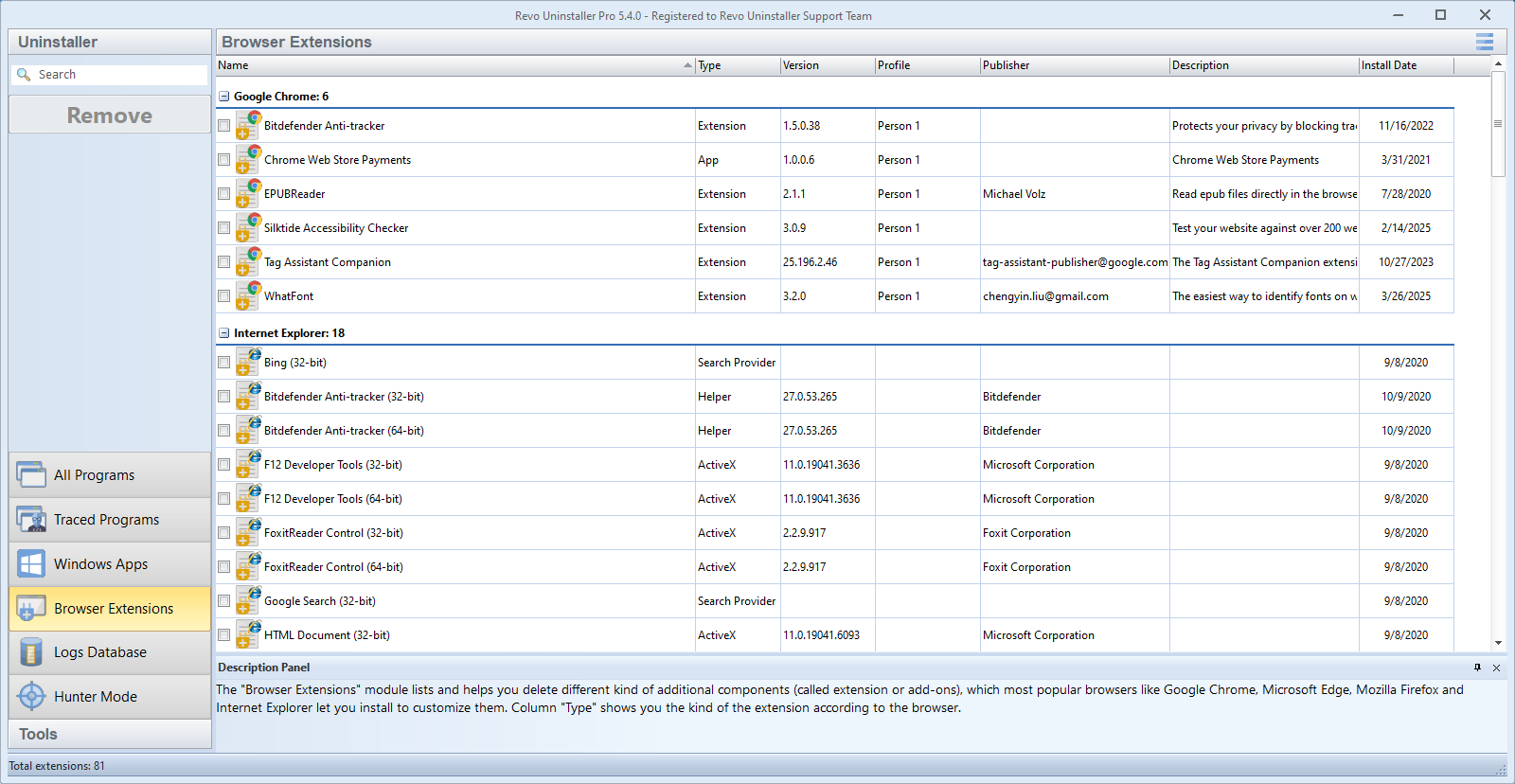
Screenshot: Browser Extensions module in Revo Uninstaller

Browser extensions

See extensions across supported browsers and remove what you do not need.

After removal, restart the browser once so toolbars and injected scripts fully unload.

Screenshot: Revo Uninstaller cleanup scan with category list

System cleanup

This view groups removable clutter such as temp folders, caches, and redundant shortcuts. Exact labels depend on your edition, but the idea is the same: preview the list, then delete only what you recognize.

Pair with the post-update checklist on the Blog for a sensible order of operations.

Registry companion

Registry Cleaner panels

These captures show registry-related utilities that appear beside the uninstaller in many Pro installs. Tabs and wording can vary by version—read every list before you delete, and export backups when the app offers them.

For a plain-language take on which keys are safer to trim after an uninstall, open the registry leftovers article on the Blog.

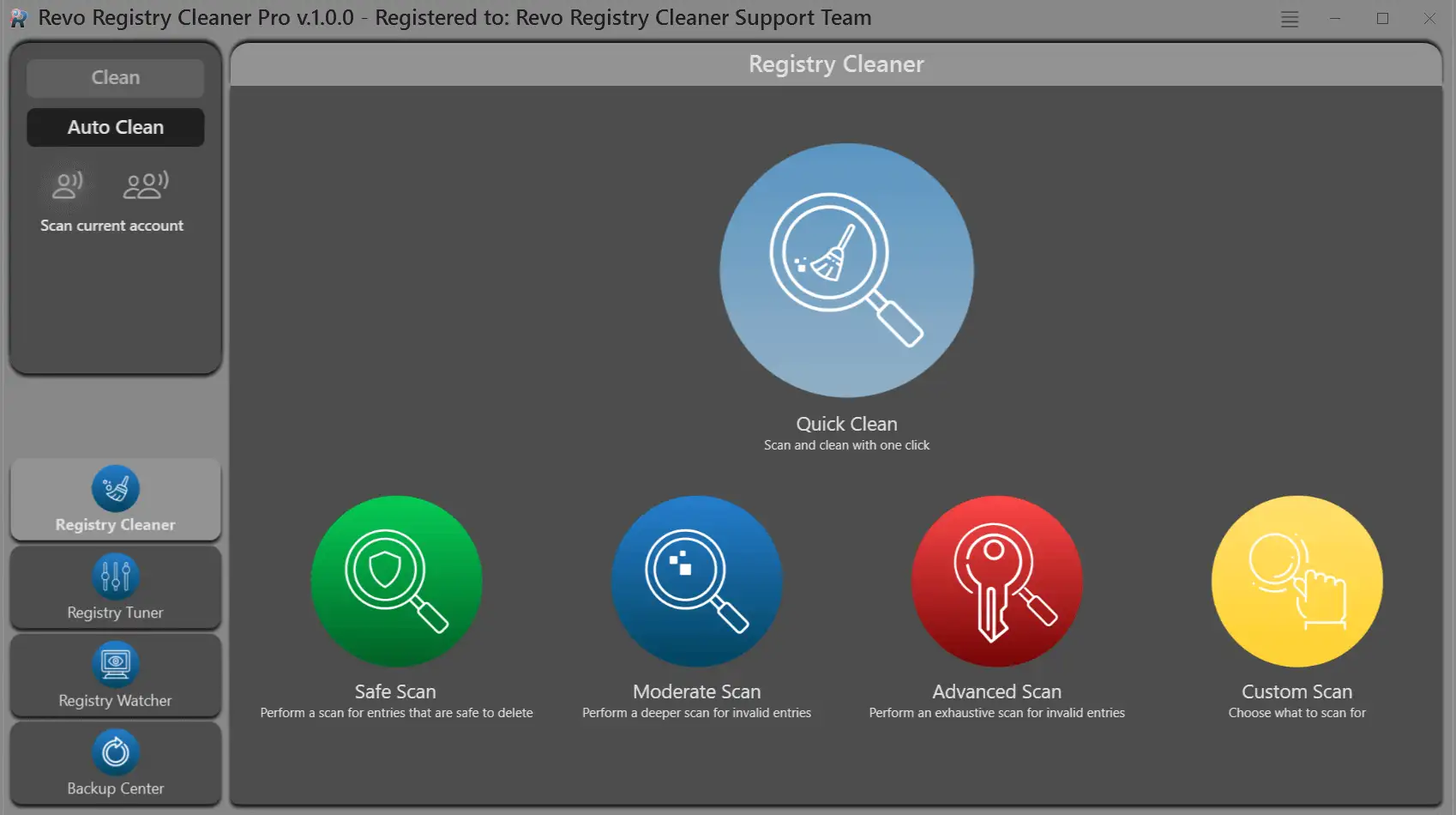
Registry Cleaner: streamlined layout with user-focused controls and scan summary

User-focused layout

Primary actions stay visible while advanced options stay tucked away. Use this view to confirm what will be scanned before you start a long session.

If labels differ from your build, match by icon and panel position rather than exact text.

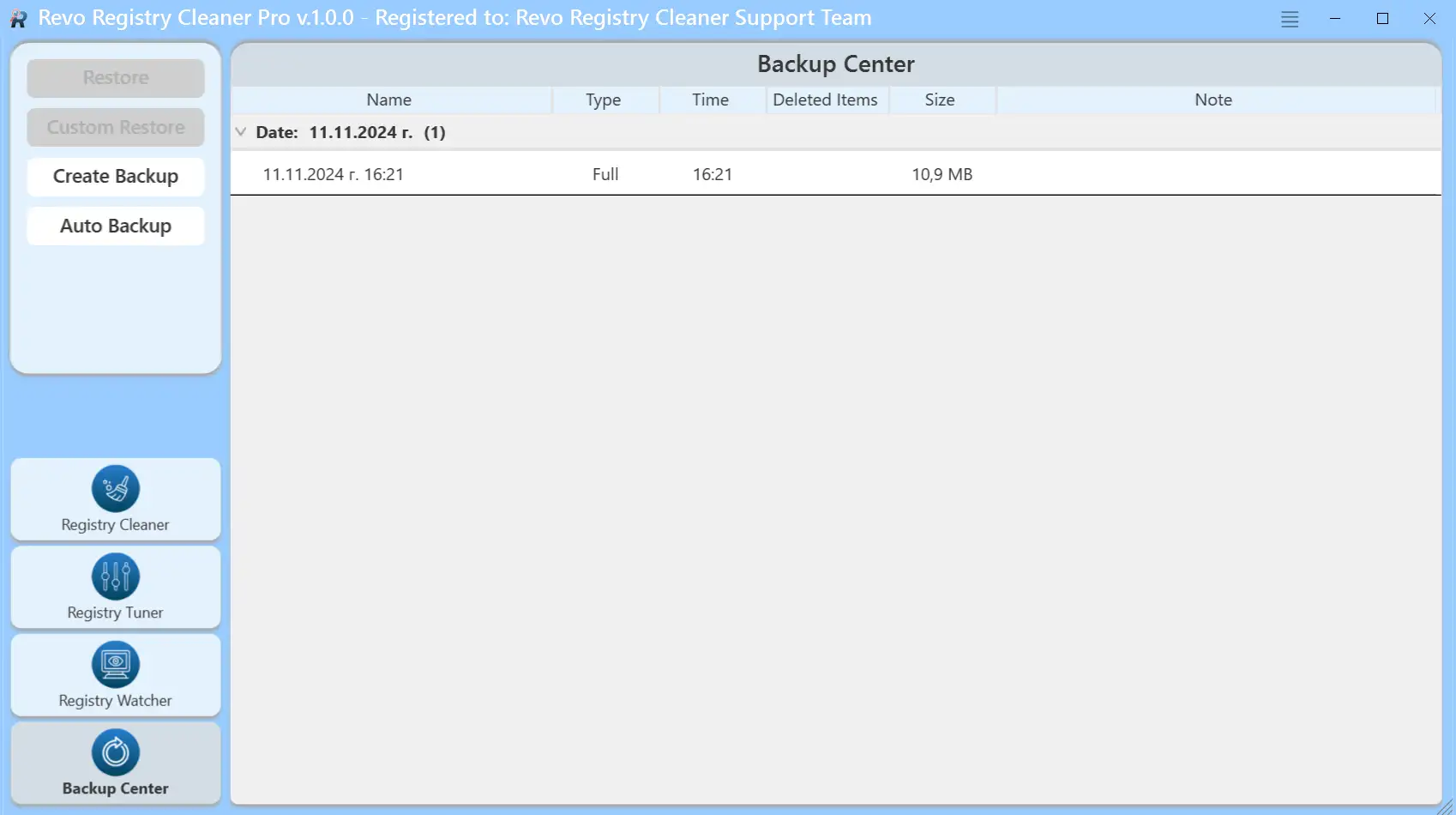
Registry Cleaner: backup center for exporting and restoring registry snapshots

Backup center

Create and store registry backups before aggressive cleanup. Keep copies on another drive until you reboot and confirm Windows behaves normally.

Restoring a backup is faster than hunting individual keys if something misbehaves after a scan.

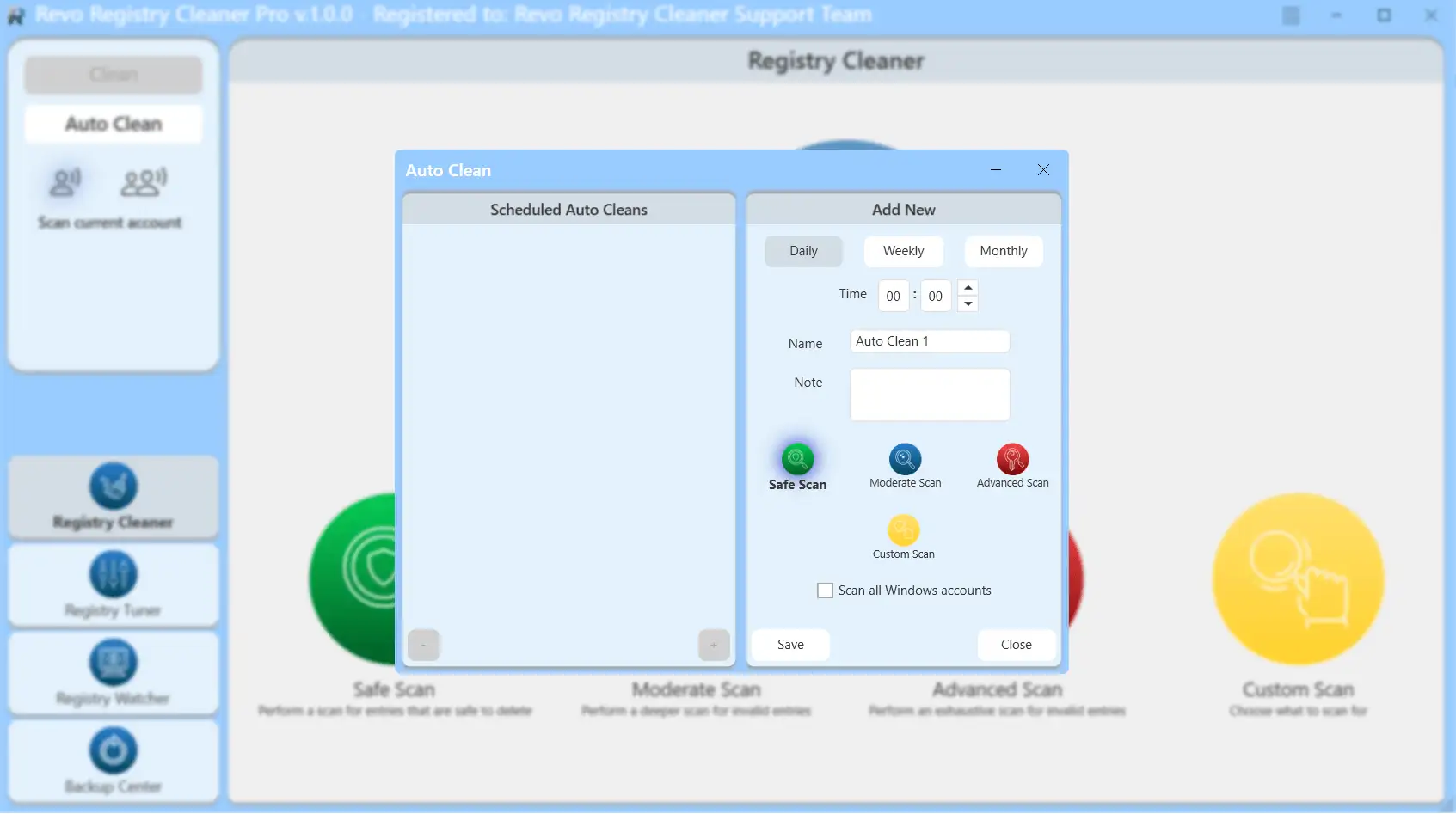
Registry Cleaner: automation and update scheduling options

Automation and updates

Schedule recurring scans or maintenance windows when the PC is idle. Pair automation with conservative scan profiles so background jobs do not surprise you.

Skip heavy schedules on laptops that sleep unpredictably; missed jobs can stack up and run all at once after resume.

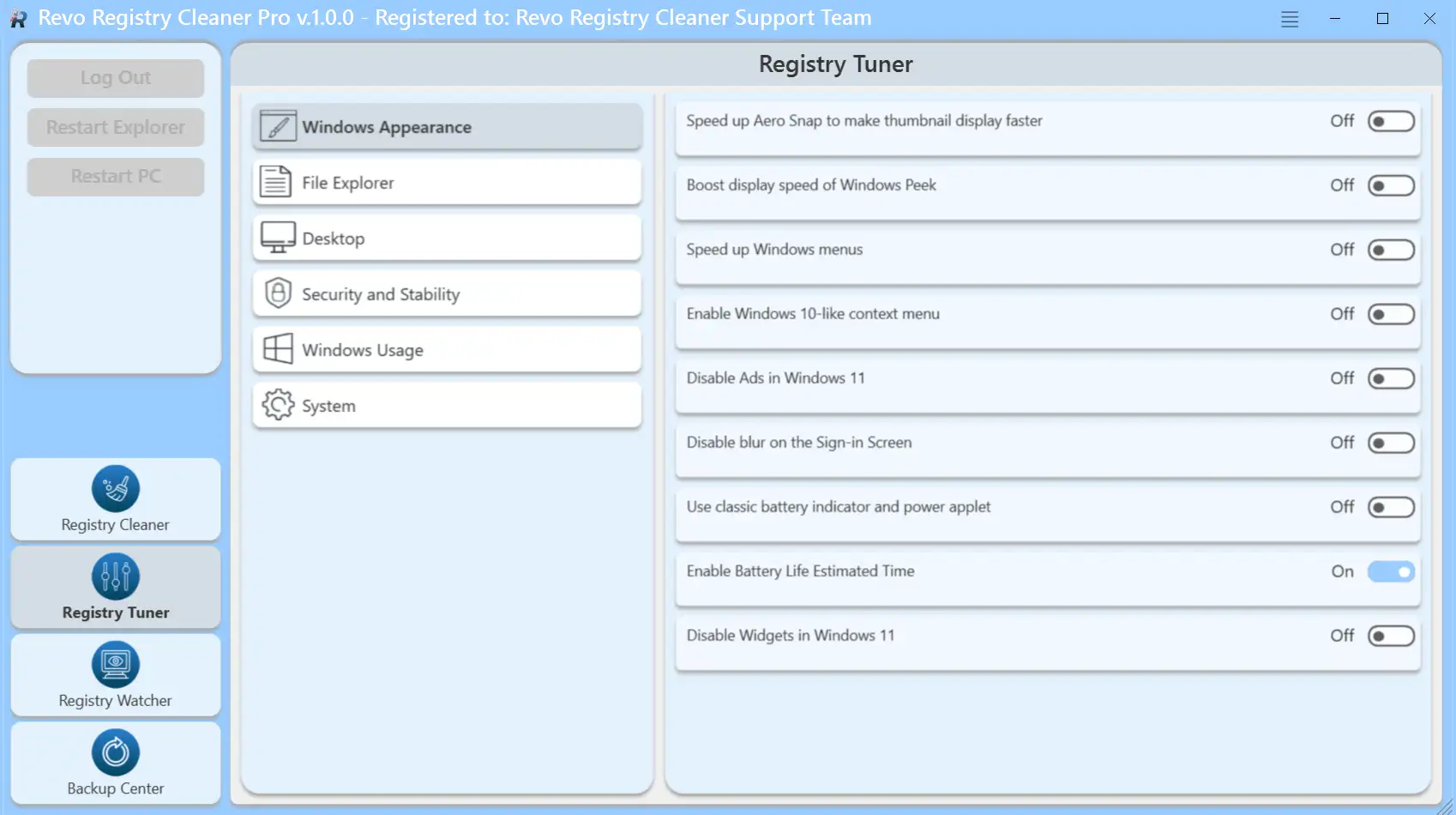
Registry Cleaner: Registry Tuner adjusting system and application tuning values

Registry Tuner

Tuning views group related tweaks in one place. Change only what you understand; document defaults before you experiment on a production machine.

When a tweak references a vendor path you already removed, verify no other program still depends on the same registry value.

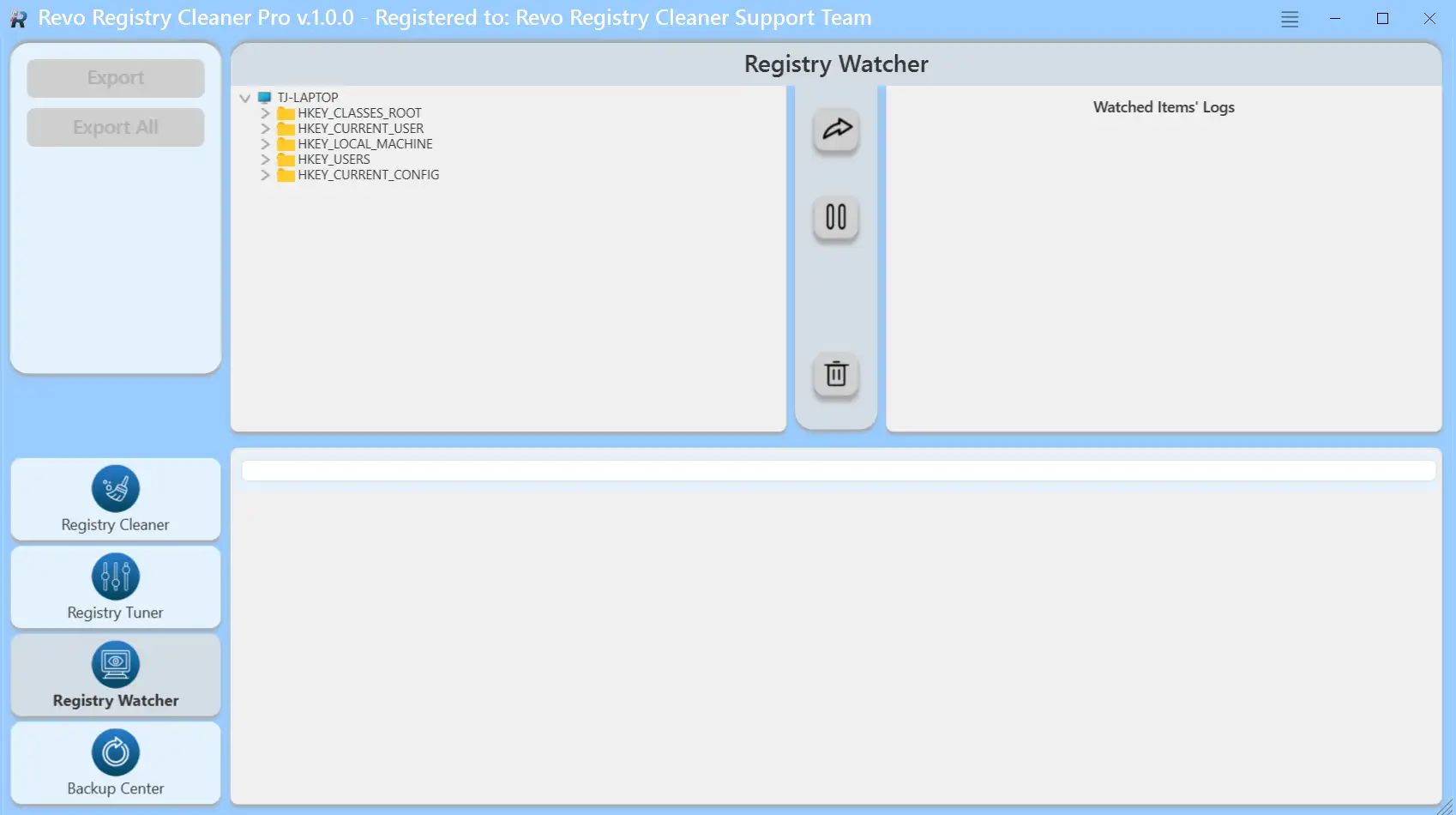
Registry Cleaner: Registry Watcher monitoring real-time registry changes

Registry Watcher

Watch mode helps you see which installer touched which keys during a setup. Pause logging when installers spam noisy entries so you can focus on meaningful deltas.

Export or note suspicious paths, then cross-check them in All programs before you delete anything system-wide.

Videos

Walkthroughs from the vd folder.

Pause often. UI labels in the recording may differ slightly from your installed build, but the sequence of panels and safety prompts is still useful.

Overview of the interface and a typical uninstall.
What is new in the Pro 5 line.

Uninstall modes in one place

Uninstall
Runs the vendor’s default wizard, then offers a leftover scan.
Quick Uninstall
Chains several programs through one flow. Useful when you are clearing a batch of similar tools.
Forced Uninstall
Points at a folder when the normal entry exists but the uninstaller is broken or missing.
Hunter Mode
Targets windows and tray icons that never registered a full list entry.

See Guides for safer ordering and screenshots.

While you compare screenshots

  • Match the panel names you see here with your installed build. Older skins may use different wording for the same action.
  • Keep Task Manager visible on a second monitor when you test Hunter Mode so you can confirm which process disappears.
  • Pause videos at each dialog. The safest habit is to read every checkbox before you confirm deletion.
  • If a screenshot looks sharper than your UI, check display scaling. Set 100% temporarily when hit targets feel misaligned.

How this page fits the rest of the site

Screenshots show where controls live. The Guides explain when to use them, the Blog covers focused scenarios, and the FAQ answers policy and safety questions in plain language.

Download