
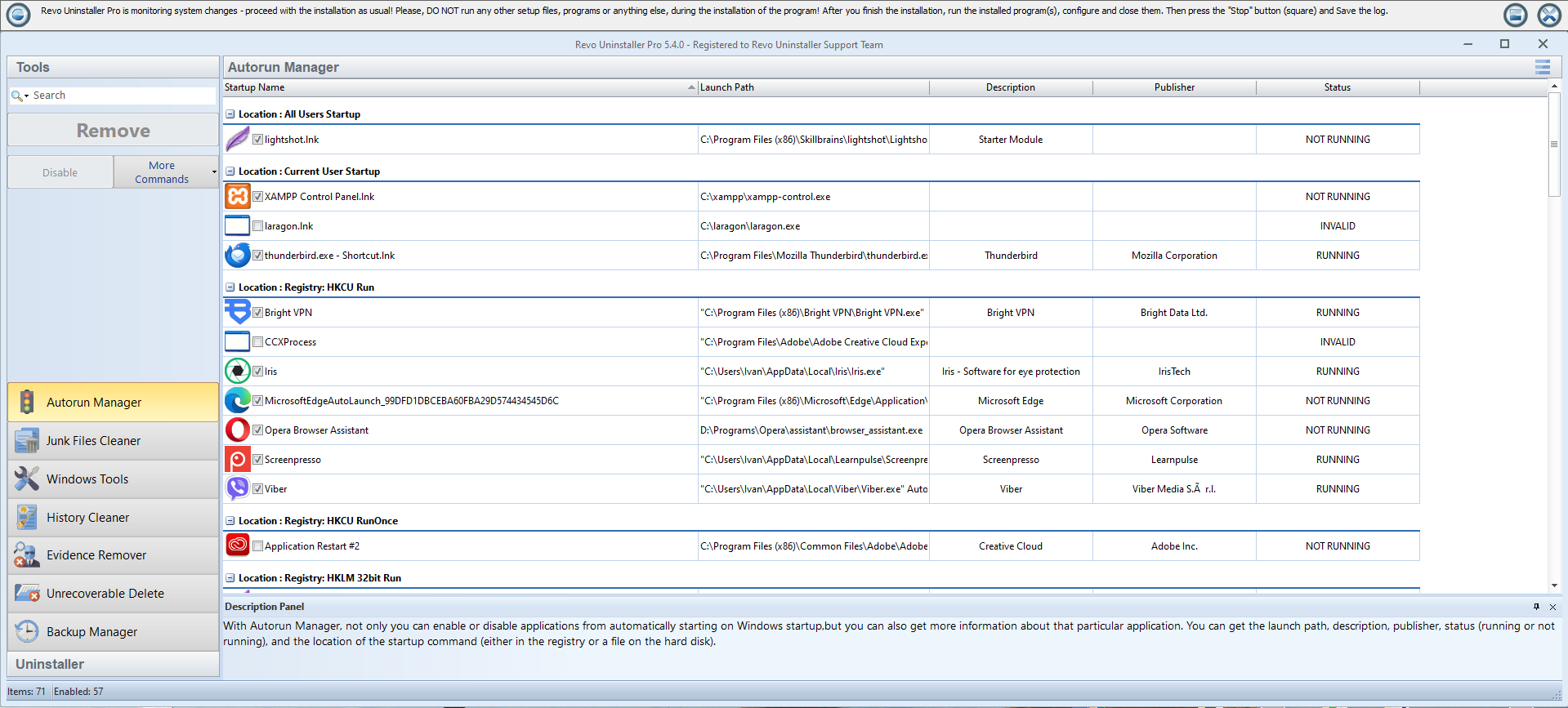
Open Autorun Manager after a big cleanup and sort by publisher or name. The goal is not a bare list—Windows legitimately starts dozens of helpers—but to silence entries whose executables no longer exist or belong to software you already removed.
Disable orphans before you delete them
Prefer disable over delete on the first pass. Reboot once and use the machine normally: confirm nothing you still rely on lost a tray icon, GPU overlay, or cloud sync prompt. If everything looks fine, you can remove the disabled entry later during a second, calmer review.
Scheduled tasks often outlive the uninstaller. If you see a task pointing at a deleted path, remove it only after you verify no other suite registered the same job name or trigger.
Common categories you will see
- Run keys (
HKCU\...\Run): frequent home for updaters and trial reminders. - Services: slower to audit; confirm the service display name matches the removed vendor before you stop or disable anything.
- Shell extensions: tied to Explorer context menus; skip unless you are sure which product registered the handler.
Leave Microsoft and driver entries alone
Windows itself ships many entries. When the description mentions Microsoft, a silicon vendor, or a driver you recognize, leave it alone unless you are following a documented troubleshooting article from the hardware maker.
Pair this pass with the leftover reading guide so file deletions and startup trims happen in a consistent order—uninstall first, reboot, then trim autostart noise.
Machine-wide vs. per-user startup
Entries under the All users or HKLM\...\Run branches affect every account on the PC. If only one family member uninstalled a game, double-check that no other profile still launches a companion app from the same publisher before you delete the shared entry.
Domain-joined PCs may reapply startup items from Group Policy after reboot. If an entry you disabled reappears with the same path, talk to administrators instead of fighting policy with local deletes.
Verify like a user, not like a technician
After your disable pass, log off and on once (or reboot) and open the apps you care about: email, chat, password manager, GPU metrics, backup software. If nothing is missing from the tray and Task Manager’s Startup impact list looks sane, you are done for the day.